Choosing a photo for your Enzo celebration video
Face, light, clothing and pet-photo tips, plus upload limits and common mistakes.
Give the AI a clear reference
A useful photo makes the subject easy to recognise. Start with one person facing the camera, an unobstructed face and even light. A waist-up photo usually gives more clothing context than a tiny face crop. Keep some room around the head and shoulders.
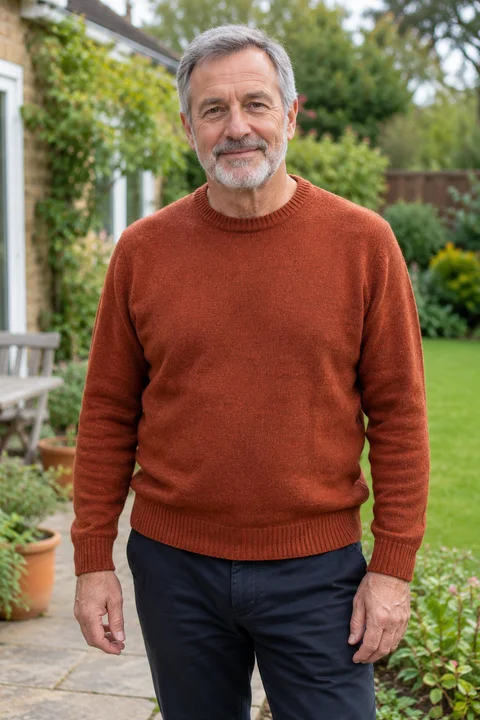
This is the actual fictional portrait used for our older-man demonstration. Compare it with the result video: the photo provides identity and clothing, while the generator changes the scene and movement.
What helps
- One clear subject against a distinguishable background.
- Visible eyes and facial features, without sunglasses or a mask.
- Clothes you would like to see in the finished video.
- An original image rather than a heavily filtered or compressed screenshot.
These are reference-quality tips, not a guarantee of an exact likeness.
What to avoid
Group photos make the intended subject ambiguous. Very distant faces, hands covering the face, text across the subject and extreme crops give the model less useful detail. Do not upload a celebrity or a person who has not agreed.
For pets
Use your own pet, facing the camera, with eyes, ears and front paws clearly visible if possible. Our golden retriever demonstration shows how the gesture can adapt to paws. A pet result can vary substantially: do not expect human hand movements or a frame-for-frame copy of the example.
If the upload is rejected
Use JPEG, PNG or WebP, no more than 10 MB, with each side between 300 and 6000 pixels. Check the original file and avoid very narrow or panoramic crops. Enlarging a tiny image does not restore facial detail.
Selecting a photo keeps it locally until you start a render. More information is in the privacy policy.